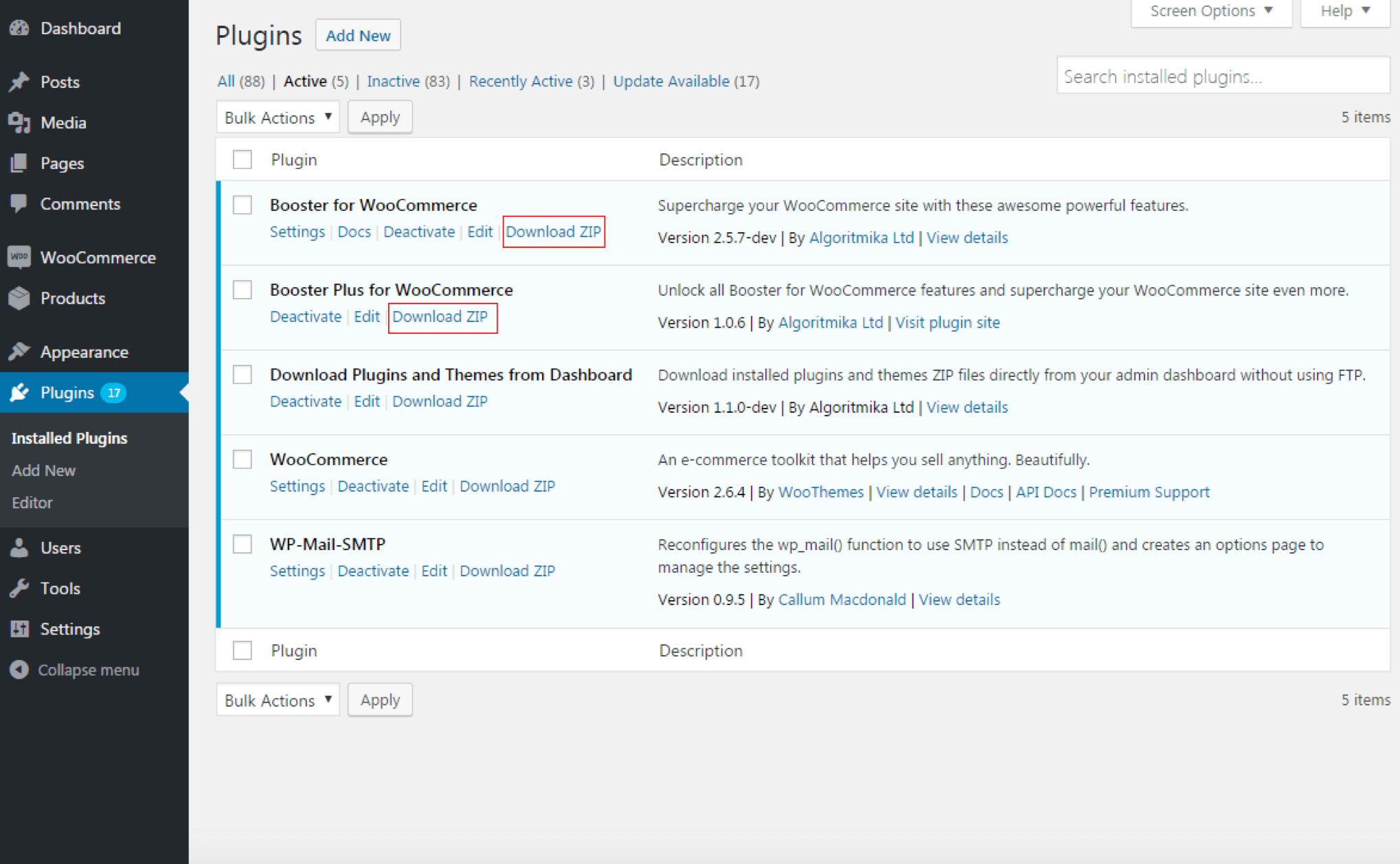
If you’ve tried to edit your WordPress blog settings page under “General Setting” and now you can’t access your WordPress admin after changing the URL by adding or deleting the “www”, then this is a natural error, and we’ll solve it in one minute. But why do you get that error, and why can’t you login to the WordPress dashboard?
Locked out of the WordPress admin area?
First of all, you’re not the only one who accidentally changed the WordPress URL and site address and then found themselves locked out of the login again. Most new bloggers will try to edit their blog settings anywhere, but the problem is that if you’re not familiar with WordPress configurations, you can have some problems when changing things the wrong way.
So, make sure the next time you ask or search for settings that you want to edit, if you’re not sure about them. That will save you time and avoid problems.
The problem with adding or deleting the www in your site URL, and WordPress address is that the file wp-config.php located in your WordPress root directory will see your new settings as a new domain name that it can’t work with. So, you can’t log in to your WordPress dashboard, and you’ll be locked out of signing in again.
Fixing the WordPress URL in the wp-config file
Here is how you can recover WordPress after a URL address change in the Settings area. You have to use any of the following solutions, and each method works differently, but a messed-up WordPress URL should work this time.
- Change back your WordPress URL from the database
- Update the blog homepage and URL using FTP
Now, the solution with the WordPress configuration file is simple. All you have to do is add the following code at the end of your wp-config.php file:.
define('WP_HOME','http://www.yourdomain.com');
define('WP_SITEURL','http://www.yourdomain.com');
Of course, you should replace “yourdomain” with your own domain name. To make things even more simple, let’s add that code together in a step-by-step tutorial and let you access the WordPress admin area again. Please refer to step 2 below for steps with a screenshot of how to find the WordPress configuration file and add that code to it.
1. Fixing the blog URL in the database
Before starting, make sure you create a backup of your database, even if the site is broken and you can’t access the admin area. There are many times when users want to mess with the database tables, and end up with a completely broken site and not just a problem of logging.
If you don’t know how to do that, it will be better to contact your web hosting customer support and tell them about the issues, and they’ll create a backup for you and even change the URL in seconds.
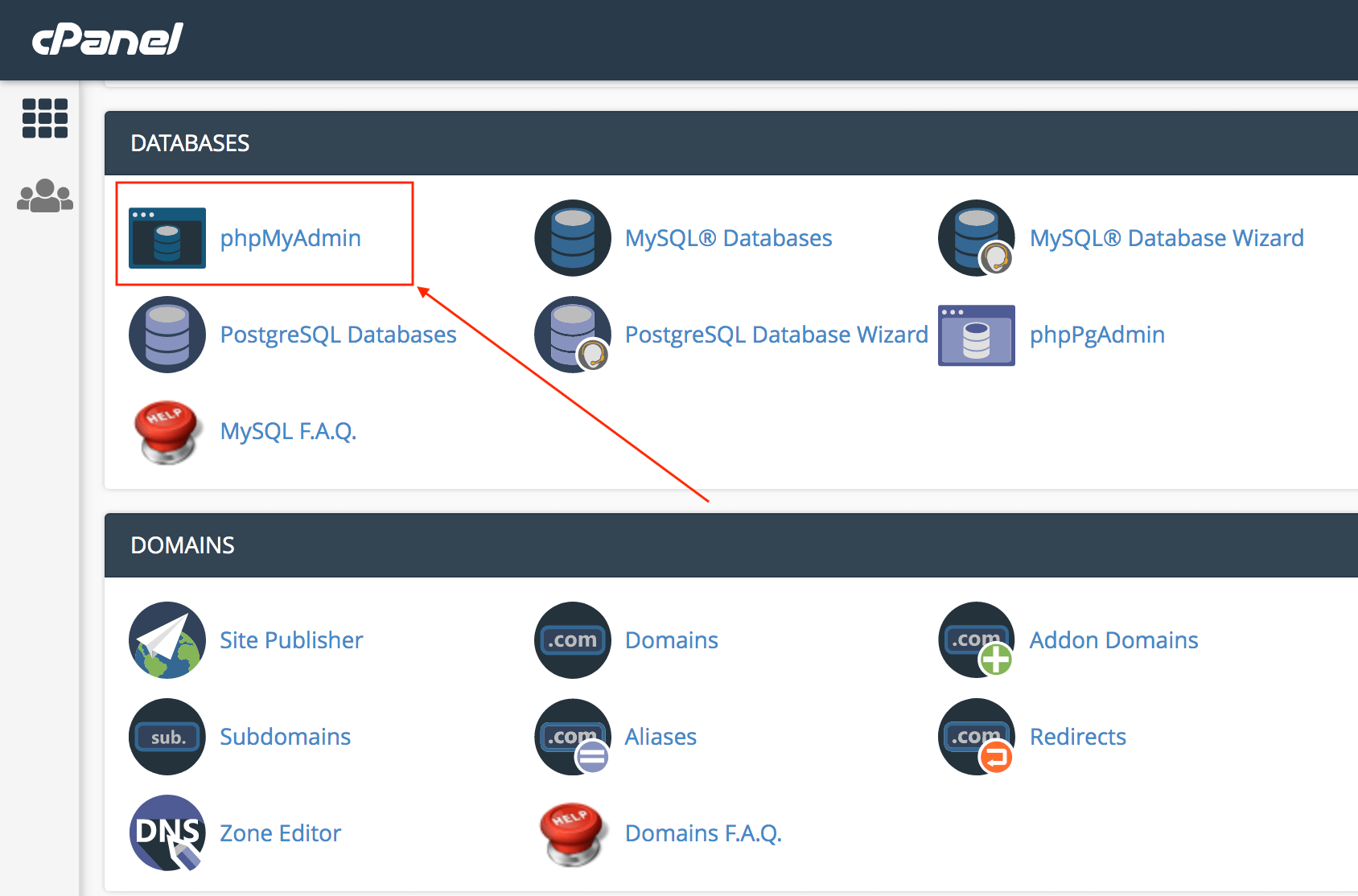
Now, if you know what you’re doing, and you prefer the do-it-yourself method, you can start by logging into cPanel or its equivalent when you can access the database using PHPMyAdmin. Look for that and click on it.
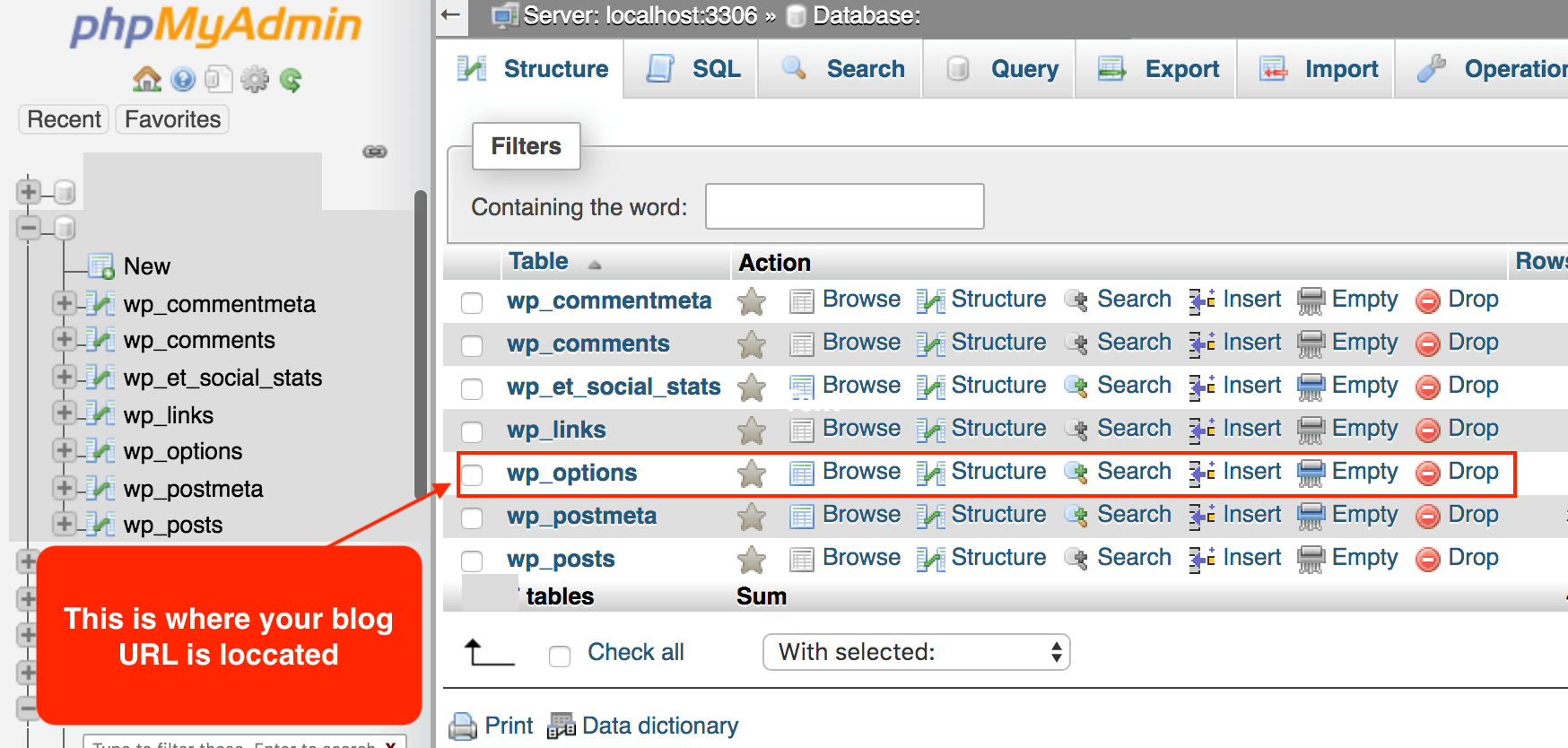
Now, you’ll be logged in automatically, as most cPanel configurations in modern web hosts do that. What you need now is the wp-options table, you’ll find dozens of tables or more in the database, but only that one is responsible for the site name and homepage address, so click on it.
Next, you’ll find your site URL and home address. Each one has a dedicated table in the database, so you can click on Edit from the left area of the table name to modify it.
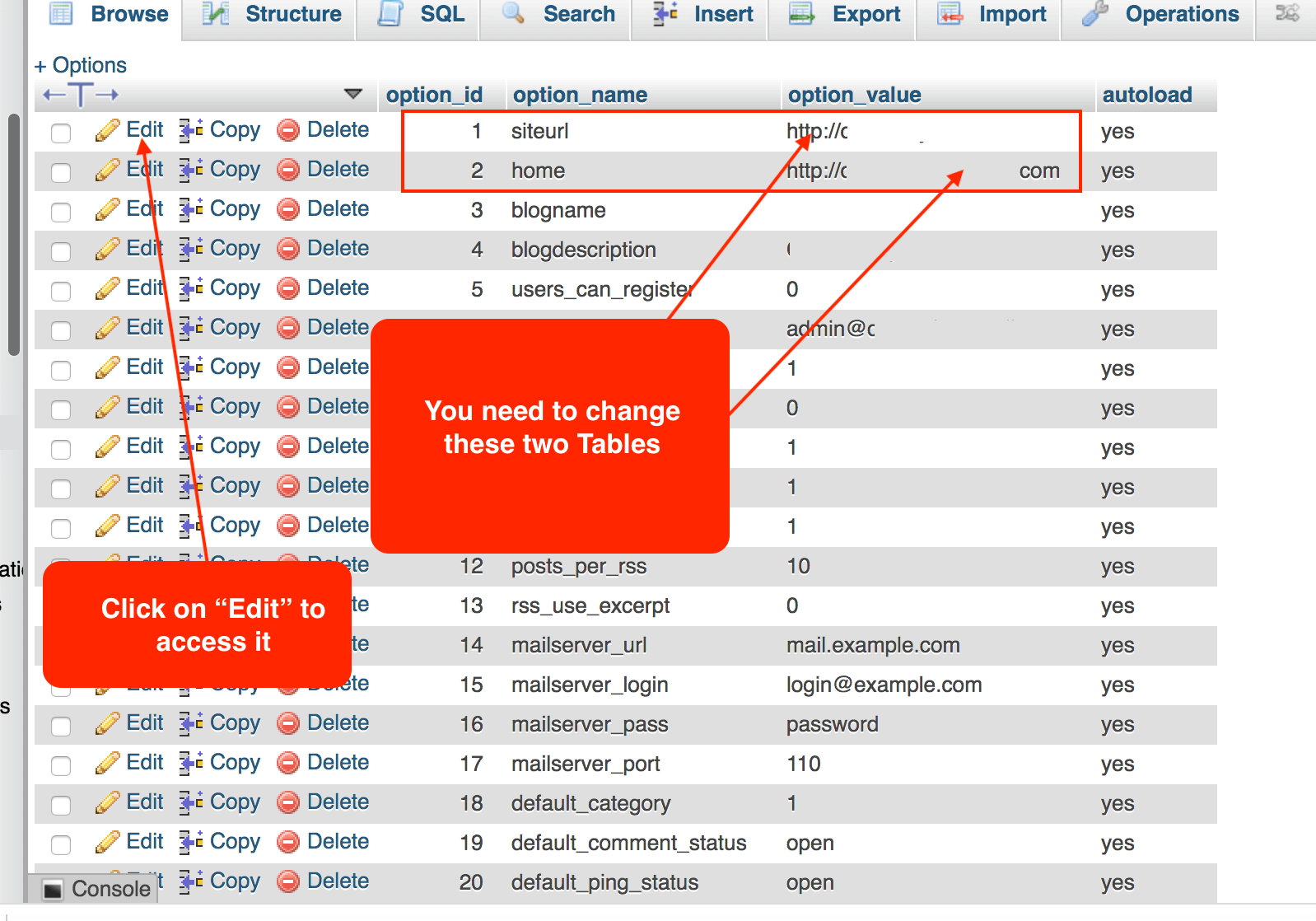
All you have to do now is change your site URL with the old one and do the same for the home URL, then click on the Go button to save the changes.
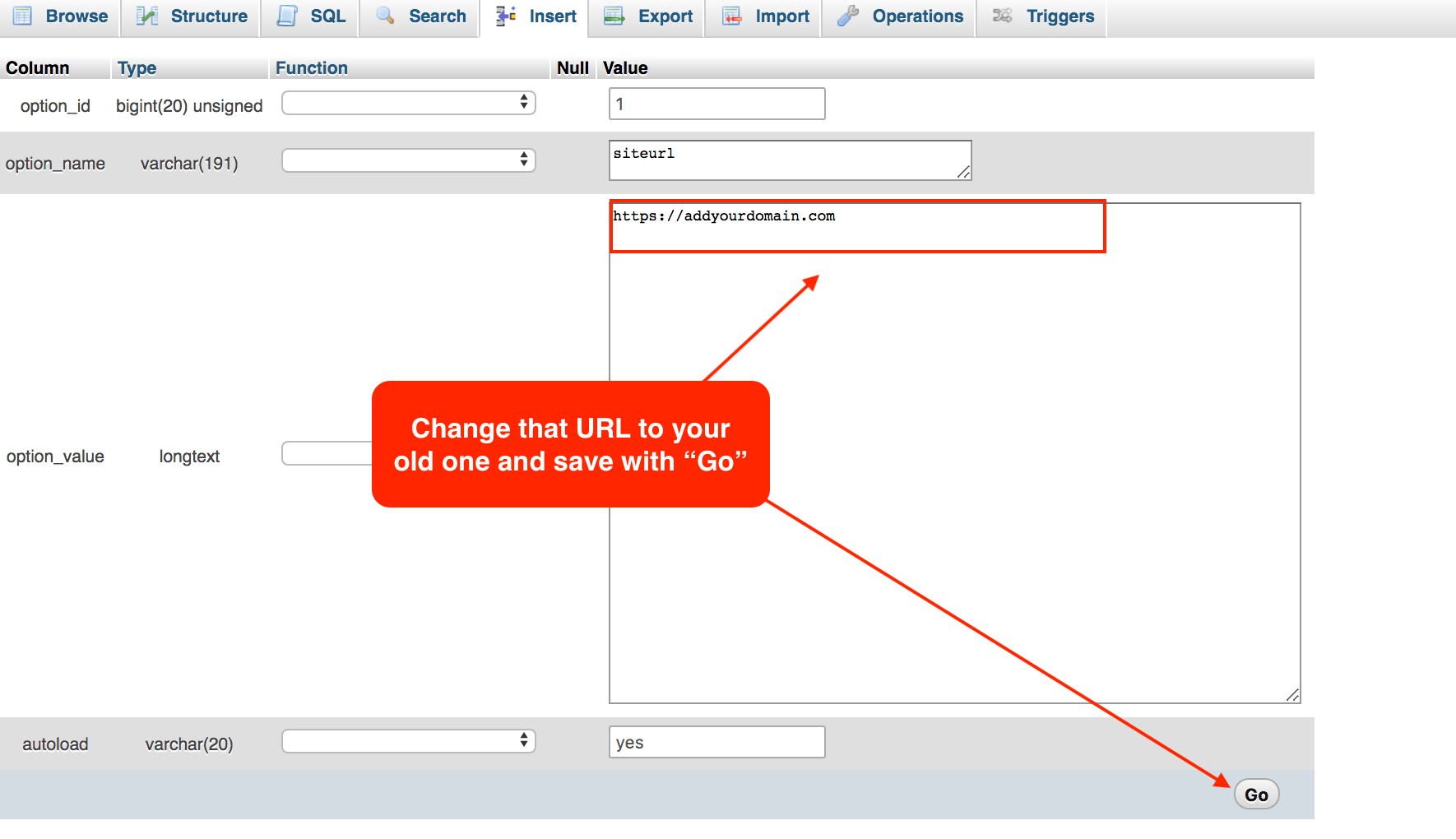
The first thing that you need to do is log in to your cPanel account. If you never did that in the past, your web hosting provider should send you a welcome email with all your login details. So, if there are no credentials you saved, look for them in your email and check the first email you received from the web hosting provider.
Using any WordPress hosting plan for one month should make things better for bloggers because they can try the services before buying the yearly hosting package. Thus, it gives everyone an idea about the quality of customer support offered by the provider and whether it’s worth it or not.
2. Changing the blog URL back using wp-config.php
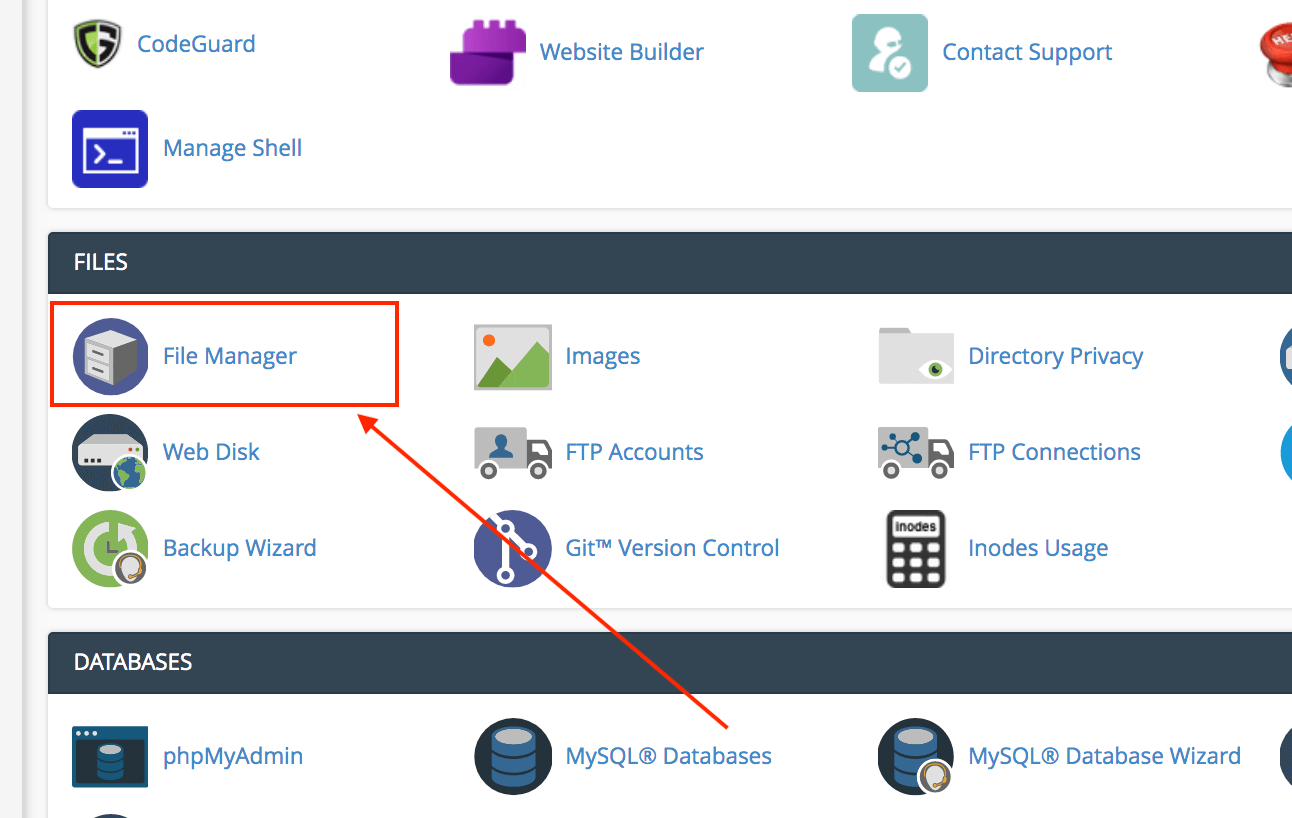
When you do, log in to cPanel, and then look for a tool called “File Manager”. It’s an FTP tool that lets you edit your website files just like FileZilla and others, but this one is faster and easier to use.
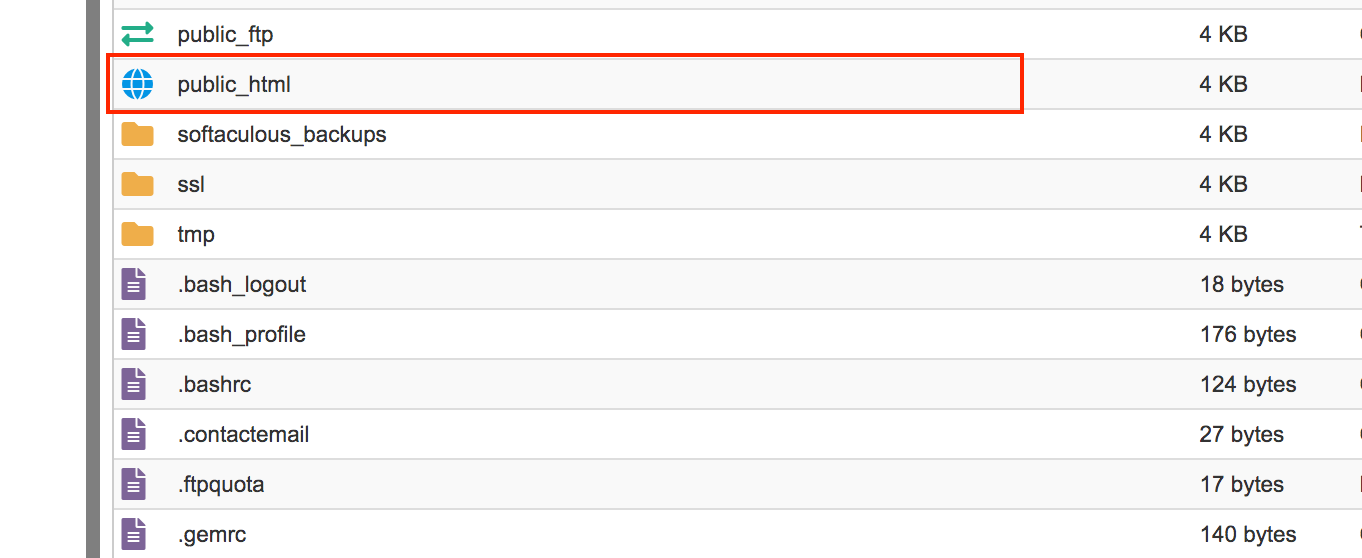
When you open the File Manager in cPanel, you’ll find a directory called public_html or the name of your site, depending on where you installed WordPress.
Now that you have all your blog files, just search for the file wp-config.php and click on “edit file” at the top of the editor. It’s not the same, as wp-config-sample.php that’s the default WordPress configuration file that can be deleted, but in the screenshot, it’s just an example or installation.
All you have to do now is add the code at the end of the file and save it. You have to clear your browser cache if the problem persists. Then, reload your page, and you will get access to your WordPress admin dashboard. You will notice that you can’t change the URL from your “General Settings” page, and this is normal because you changed it directly from the “wp-config.php” file, it’s simpler and safer.
In other cases, you can change the URL directly from your WordPress dashboard, and it can be changed another time. Things become easier with the latest WordPress versions, but please remember to make a backup before doing anything in your blog settings, especially if you’re a newbie.
That can cause problems, and it’s not easy to find solutions for every specific error online. The WordPress forum is a great place to ask questions and find solutions, but you can get a response instantly, and you will never get a reply in other cases.
There are volunteers, and not all of them are really helpful as you expect. So, make things easy for you, and never change your URL if you’re not sure about your settings.
If you really care about your website, you should verify that you can access your blog files through FTP, like FileZilla. Also, make sure that you can login and edit your files directly from your cPanel account. If one method is not working for you, you still have access to your WordPress files and can make changes or correct things.

THANKS. You just saved my azz. Newbie with a major deadline approaching.
I am not technical at all and have managed to do exactly what you are saying. I tried to change blog address from themmoddiva to kathrynlindajones now I can’t get into WordPress at all and it won’t find the site. How do I even log into WordPress to get to settings – it says there is no account with my email??? I’m an idiot I know, but if you can help, would be much appreciated. Otherwise I suspect I’ll just have to start from scratch.